WebMMS - New MMS (Standard)

<< <%SKIN-STRTRANS-SYNCTOC%> >>

WebMMS - New MMS (Standard)


Overview


Create a new MMS order.


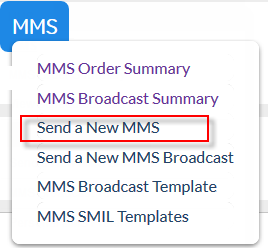
Click the 'MMS' tab at the top of the interface to open the WebMMS(+) menu.


Click 'Send a New MMS Order' to open the 'New MMS' screen and compose a new order.


Description


New MMS  


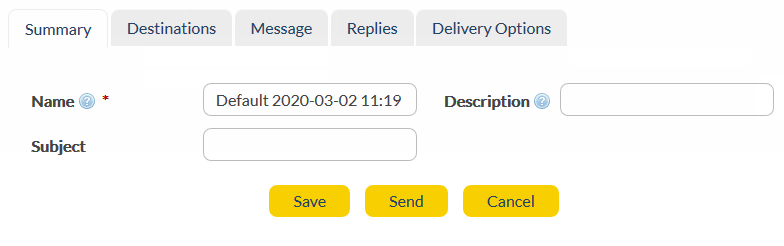
Summary


Name


A word or number used to identify the order in summaries and reports (not visible to message recipients).


Description


Type/paste any extra descriptive information which might be useful.


Subject


Type/paste a subject to be presented as the title of the MMS.


Destinations


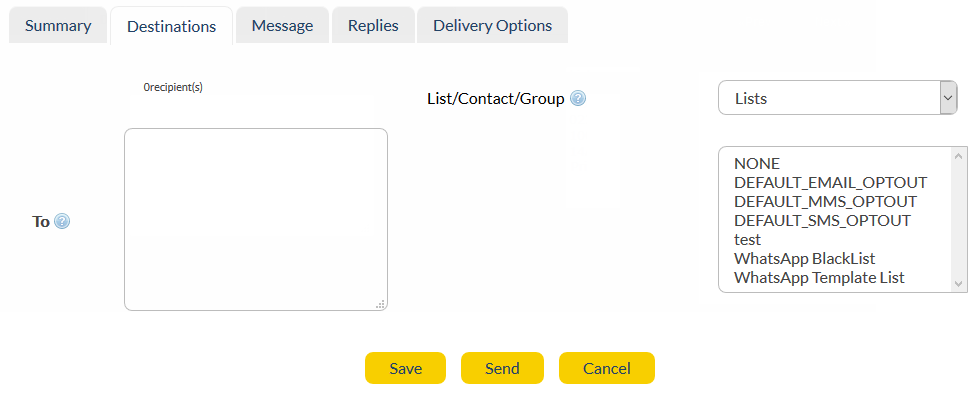
To

Type/paste mobile number(s) in international format. The field will convert numbers to the required international format if possible.


e.g. 12912345678.


You can add multiple destination numbers, 1 per line. There is no limit to the number of destination numbers you can add in this field.


e.g. 12912345678

12912345679


How to personalize using Mail Merge (click to expand)


List/Contact/Group


Choose pre-existing destination(s) for your message. Select 'Lists', 'Contacts' or 'Groups' from the drop-down list. Click here for information about lists, contacts and groups.


Left-click to select the destination list(s) / contact(s) / group(s). Ctrl + left-click to select multiple list(s) / contact(s) / group(s).


Only the first 1000 contacts/groups/lists will be displayed (in alphabetical order).


Message


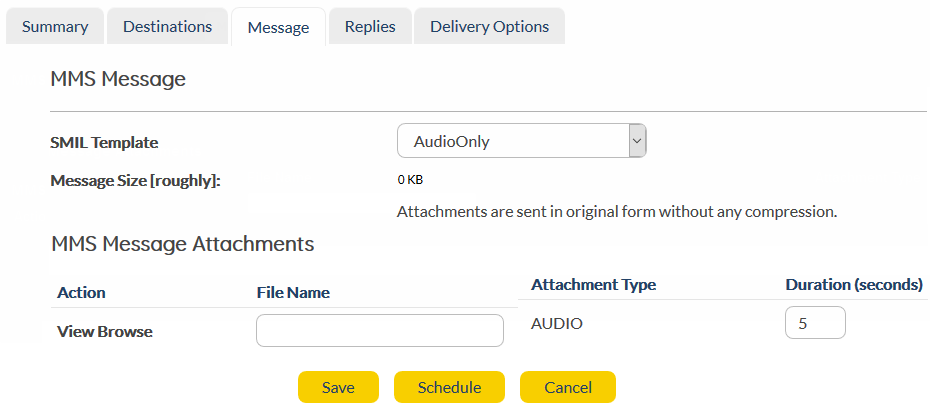
This is where you specify the content of the message. You can use the existing templates or create your own using SMIL (Synchronized Multimedia Integration Language).


The available templates include:


Audio Only


Audio & Text


Image Only


Image & Text


Video, Image & Text


Video Only


Video & Text


Custom


MMS Message Attachments


Depending on the template that you have selected, you add files (Image, Audio, Video, Text) as MMS Message attachments.


View


View the attachment.


Browse


Browse for the attachment.


Duration


The length of time the image, audio or video file is active for.


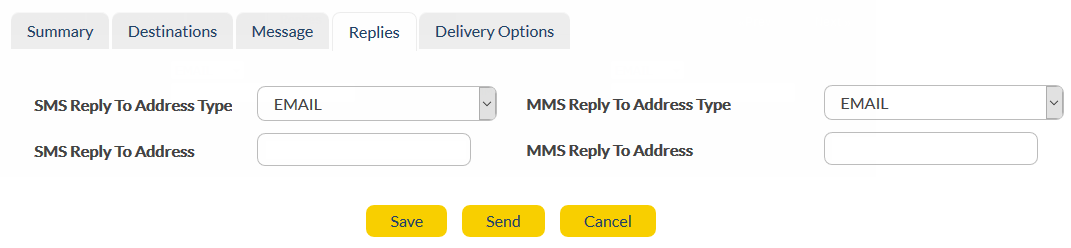
Replies


SMS Reply To Address Type

Determines how SMS replies are handled.


The drop-down menu options are:


INBOX - Reply is received directly into AT&T GSMS platform - not email inbox. Received messages can be viewed in Messages section.


MOBILE - Replies will be sent to the mobile number listed in the ‘Reply to Address’ field. Replies will still be available in your inbox.


EMAIL - Replies will be sent to the Email address listed in the ‘Reply to Address’ field. Replies will still be available in your inbox.


URL - This option allows replies to be posted to a URL. This option is only for customers who have their own in-house programming expertise.


MMS Reply To Address Type


Determines how MMS replies are handled.


The drop-down menu options are:


INBOX - Reply is received directly into AT&T GSMS platform - not email inbox. Received messages can be viewed in Messages section.


MOBILE - Replies will be sent to the mobile number listed in the ‘Reply to Address’ field. Replies will still be available in your inbox.


EMAIL - Replies will be sent to the Email address listed in the ‘Reply to Address’ field. Replies will still be available in your inbox.


URL - This option allows replies to be posted to a URL. This option is only for customers who have their own in-house programming expertise.


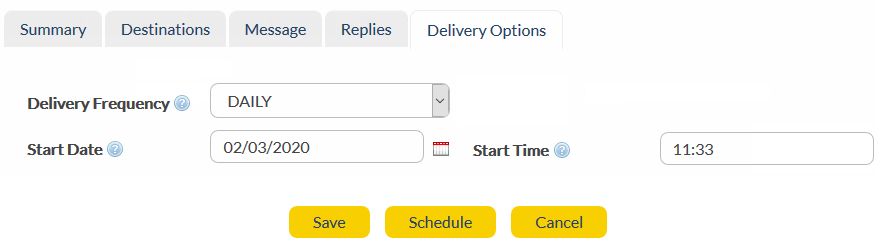
Delivery Options


Delivery Frequency

Select your delivery frequency from the Delivery Frequency drop-down menu. The options are:


HOURLY, DAILY, WEEKLY, FORTNIGHTLY or MONTHLY - Ongoing; message is sent on the same day/time each week.


IMMEDIATE - Message is sent immediately.


ONCE - Message is scheduled for sending at a single specified time/date in the future.


WEEKDAY - Sent only between Monday to Friday.


WEEKEND - Sent only on a Saturday or Sunday.


Start Date and Start Time


The Start Date and Start Time of the order.


Once all required fields are complete:


Store changes and exit without sending or scheduling.


Store changes and exit without sending or scheduling.


If 'Delivery Frequency' is 'IMMEDIATE', this button launches the order.


If 'Delivery Frequency' is 'ONCE', or a recurring value (e.g. 'DAILY'), this button activates the order so that it will be sent at that time (and/or frequency).


Undo any changes and exit.


Store order content as a template for later use.