WebMMS - New MMS (Broadcast)

<< <%SKIN-STRTRANS-SYNCTOC%> >>

WebMMS - New MMS (Broadcast)


Overview


Create a new MMS Broadcast order.


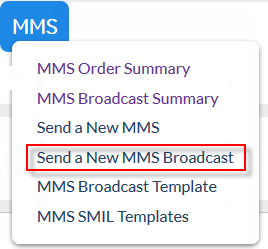
Click the 'MMS' tab at the top of the interface to open the WebMMS(+) menu.


Click 'Send a New MMS Broadcast' to open the 'New MMS Broadcast' screen and compose a new order.


Description


New MMS Broadcast  


Summary


Name


The name of the broadcast.


Description


Additional information about the message. This field can be left blank.


Subject


The 'Subject' field enables you to quickly identify the message in future (subject can be a maximum of 150 characters).


Destinations


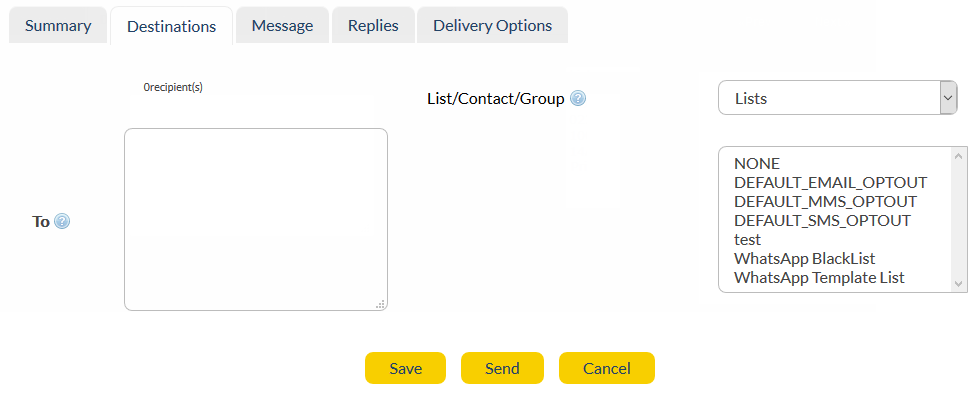
To

Type/paste mobile number(s) in international format. The field will convert numbers to the required international format if possible.


e.g. 12912345678.


You can add multiple destination numbers, 1 per line. There is no limit to the number of destination numbers you can add in this field.


e.g. 12912345678

12912345679


How to personalize using Mail Merge (click to expand)


List/Contact/Group


Choose pre-existing destination(s) for your message. Select 'Lists', 'Contacts' or 'Groups' from the drop-down list. Click here for information about lists, contacts and groups.


Left-click to select the destination list(s) / contact(s) / group(s). Ctrl + left-click to select multiple list(s) / contact(s) / group(s).


Only the first 1000 contacts/groups/lists will be displayed (in alphabetical order).


Message


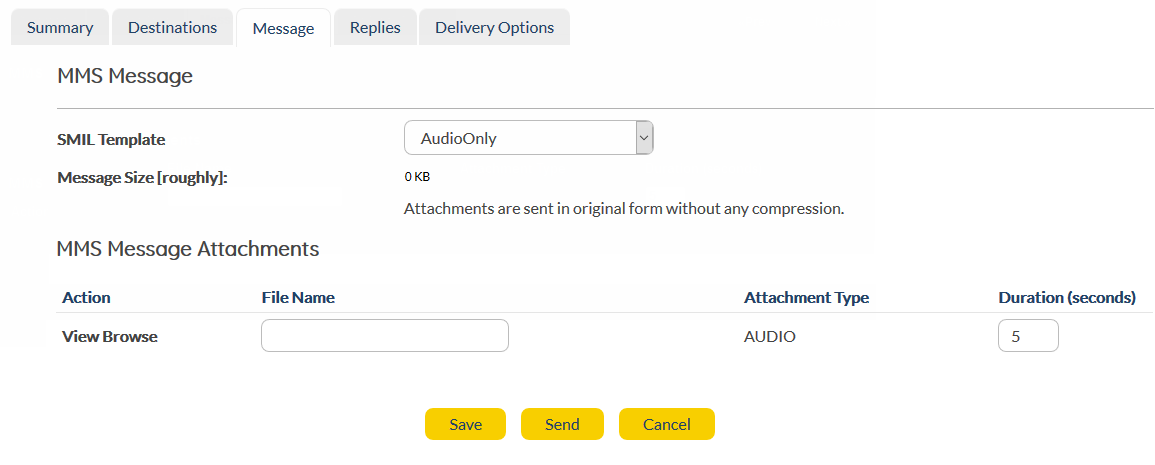
The available templates include:


Audio Only


Audio & Text


Image Only


Image & Text


Video, Image & Text


Video Only


Video & Text


Custom


MMS Message Attachments


Depending on the template that you have selected in MMS message, you can attach the files (Image, Audio, Video, Text) in MMS message attachments.


View


View the attachment.


Browse


Browse for the attachment.


e.g. VIDEO, TEXT, IMAGE


Duration


The length of time the Image, Audio or Video runs for.


Click 'Browse' to locate the desired attachment.


Once you have confirmed your attachment, click 'Upload'. The attachment name will be displayed in the 'MMS Message Attachments' field.


Click 'View' to preview the attachment.


Consent


Outbound Filter Type


The type of filter (Blacklist/Whitelist) to apply to the outbound Contacts/List.


None - No outbound permission filters in place.


Blacklist - No messages will be sent to the people listed in the Blacklist.


Whitelist - Messages will only be sent to people listed in the Whitelist.


Outbound Filter List


The name of the List that is used as a Blacklist/ Whitelist.


The lists are filtered to only present 'TEXT' type lists and not 'UPLOAD' or 'AUTOMATIC'.


Replies


SMS Reply To Address Type


Determines how SMS replies are handled.


MMS Reply To Address Type


Determines how MMS replies are handled.


The drop-down menu options are:


INBOX - Reply is received directly into AT&T GSMS platform - not email inbox. Received messages can be viewed in Messages section.


MOBILE - Replies will be sent to the mobile number listed in the ‘Reply to Address’ field. Replies will still be available in your inbox.


EMAIL - Replies will be sent to the email address listed in the ‘Reply to Address’ field. Replies will still be available in your inbox.


URL - This option allows replies to be posted to a URL. This option is only for customers who have their own in-house programming expertise.


INBOUND - Using this option you can redirect any replies to  WebMMS+ to an Inbound MMS broadcast (note: Inbound functionality is only available with the AT&T GSMS Inbound MMS/MMS+ license).


Delivery Options


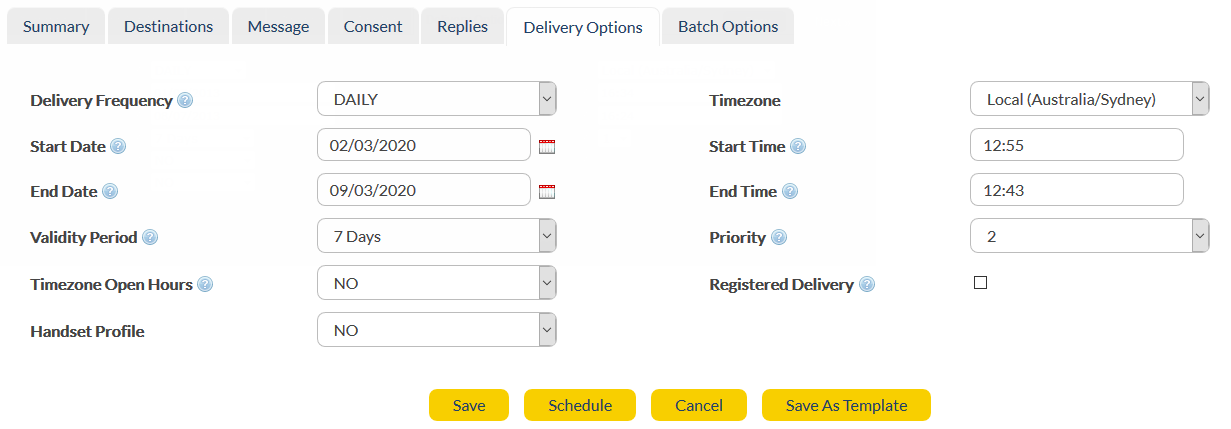
Delivery Frequency

Select your delivery frequency from the Delivery Frequency drop-down menu. The options are:


HOURLY, DAILY, WEEKLY, FORTNIGHTLY or MONTHLY - Ongoing; message is sent on the same day/time each week.


IMMEDIATE - Message is sent immediately.


ONCE - Message is scheduled for sending at a single specified time/date in the future.


WEEKDAY - Sent only between Monday to Friday.


WEEKEND - Sent only on a Saturday or Sunday.


Start Date and Start Time


The start date and start time of the broadcast.


End Date and End Time


The end date and end time of the broadcast.


Validity


Select from the drop-down menu. When the validity period has expired, messages that are queued on the mobile network will not be sent.  


Options:


1 Day


1 Hour


12 Hours


14 Days


2 Days


2 Hours


30 Days


4 Hours


7 Days


8 Hours


Always Valid


Priority


If you are running multiple WebMMS+ broadcasts simultaneously, you can set the priority for each. Priority 1 messages will be sent before Priority 2 messages and so on.


Registered Delivery


Check this box if you want to receive confirmation that a message has been delivered to a handset.


Timezone Open Hours


Specifies the times that messages can be delivered (useful if you don’t want to send messages out at night, after work hours etc.)


Options include:


No - Messages can be delivered anytime;


Default - Messages are only delivered between the times specified in the 'Default Timezone Open Hours'.


Handset Profile


Used to optimize the display of MMS messages on certain mobile handsets.


Options include:


No - No handset profile specified;


Default - the default handset profile is used.


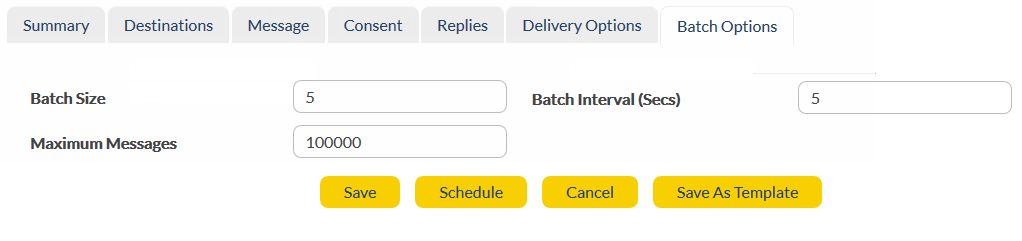
Batch Options


This feature allows you to control the rate at which messages are delivered. You may want some messages delivered at the same time, and others may need to be staggered. For example, if your message contains a prompt to call a phone number, you may want to stagger delivery so that your phone system is not overloaded with calls.


Batch Size


Edit the batch size here. The default is 500 (i.e. 500 messages per batch)


Batch Interval


Edit the interval between batches here. The default is 10 seconds.


Maximum Messages


This feature is useful if you are not sure how many recipients there are in a list, but you want to limit the number of messages sent so that you don’t exceed your broadcast budget. The default is 100,000 messages.


Once all required fields are complete:


Store changes and exit without sending or scheduling.


If 'Delivery Frequency' is 'IMMEDIATE', this button launches the order.


If 'Delivery Frequency' is 'ONCE', or a recurring value (e.g. 'DAILY'), this button activates the order so that it will be sent at that time (and/or frequency).


Undo any changes and exit.


Store order content as a template for later use.